Z-Image GGUF Practical Guide: Unlock Top-Tier AI Art with Consumer GPUs (Beginner Version)

Z-Image GGUF Practical Guide: Unlock Top-Tier AI Art with Consumer GPUs (Beginner Version)

作者: Z-Image.me2 min read
Z-ImageGGUFQuantizationConsumer GPU6GB VRAMComfyUIAI ArtBilingual PromptsHardware OptimizationBeginner Guide

Z-Image GGUF Practical Guide: Unlock Top-Tier AI Art with Consumer GPUs (Beginner Version)

1. Introduction: Breaking the "GPU Anxiety" - Even 6GB Can Run Large Models

In the world of AI art generation, higher quality and better understanding models often come with massive sizes. Z-Image Turbo, with its impressive 6 billion parameters (6B) and exceptional bilingual (Chinese & English) understanding, is hailed as "one of the best open-source image generators available." However, this comes with demanding hardware requirements—the full model typically needs over 20GB of VRAM, leaving most users with consumer-grade GPUs like RTX 3060 or 4060 feeling left out.

The good news? The "computational barrier" has been broken.

Through GGUF quantization technology, the originally massive model has been successfully "slimmed down." Now, even with just a 6GB VRAM entry-level graphics card, you can run this top-tier model locally and smoothly, enjoying professional-grade AI creative experiences. This guide will teach you how to achieve this "magic" step-by-step, avoiding complex mathematical formulas.

2. Core Revelation: The Magic of Fitting an "Elephant" into a "Refrigerator"

GGUF Quantization Principle: Fitting an Elephant into a Refrigerator

Why can top-performing models run on ordinary graphics cards? This is thanks to GGUF format and quantization technology.

Think of it as an extreme form of "compression magic":

  • GGUF Format (Smart Container):
    Traditional model loading is like moving an entire house into memory all at once. GGUF is like a brilliantly designed container system that supports "on-demand access." The system doesn't need to load the entire model into VRAM at once; instead, it reads sections as needed, like looking up words in a dictionary. Combined with "memory mapping" technology, it can flexibly utilize system memory (RAM) to assist VRAM.

  • Quantization Technology (Encyclopedia to Pocket Book):
    Original models use high-precision numbers (FP16) for storage, like a thick full-color encyclopedia—precise but bulky. Quantization technology (like 4-bit quantization) compresses these numbers into integers through complex algorithms. It's like compressing an encyclopedia into a black-and-white "pocket edition." While losing minimal precision (barely visible to the naked eye), the size is reduced by 70%!

Effect Comparison:

  • Original Model: Requires ~20GB VRAM.
  • GGUF (Q4) Version: Only needs ~6GB VRAM.

3. Hardware Check: Which Version Can My Computer Run?

GGUF versions offer multiple "compression levels" (quantization levels), and you need to choose based on your VRAM capacity. Please refer to the table below to select the version that suits you best:

VRAM Recommended Quantization Filename Example Experience Expectation
6 GB (Entry) Q3_K_S z-image-turbo-q3_k_s.gguf Usable. Slight quality loss, but runs smoothly. This is the optimal choice for this tier.
8 GB (Mainstream) Q4_K_M z-image-turbo-q4_k_m.gguf Perfect Balance. Quality is nearly indistinguishable from the original model, moderate speed, highly recommended.
12 GB+ (Advanced) Q6_K or Q8_0 z-image-turbo-q8_0.gguf Ultimate Quality. For enthusiasts pursuing lossless details.

💡 Pitfall Guide:

  • System RAM: Recommend at least 16GB, preferably 32GB. When VRAM runs low, system RAM comes to the rescue. If RAM is also insufficient, your computer will freeze.
  • Storage: Must be on an SSD (Solid State Drive). Models need frequent transfers between memory and VRAM; mechanical hard drive speeds will make you wait forever.

4. Step-by-Step Deployment Tutorial (ComfyUI Edition)

We recommend using ComfyUI, which currently has the best GGUF support and highest compatibility.

Step 1: Prepare the "Three Essentials"

To run Z-Image, you need to download three core files. Please download from HuggingFace or domestic mirrors:

  1. Main Model (UNet):

  2. Text Encoder (CLIP/LLM):
    Z-Image understands both Chinese and English because it's powered by the robust Qwen3 (TongYi QianWen) language model. Make sure to download Qwen3-4B in GGUF format (recommend Q4_K_M), otherwise this language model alone will exhaust your VRAM!

  3. Decoder (VAE):
    This is the final step to convert data into images. Use the universal Flux VAE (ae.safetensors).

    • 📂 Storage Location: ComfyUI/models/vae/

Step 2: Install Key Plugin

ComfyUI doesn't natively support GGUF, so you need to install the ComfyUI-GGUF plugin.

  • Open ComfyUI Manager -> Click Install Custom Nodes -> Search for GGUF -> Install the plugin by author city96 -> Restart ComfyUI.

Step 3: Connect the Workflow

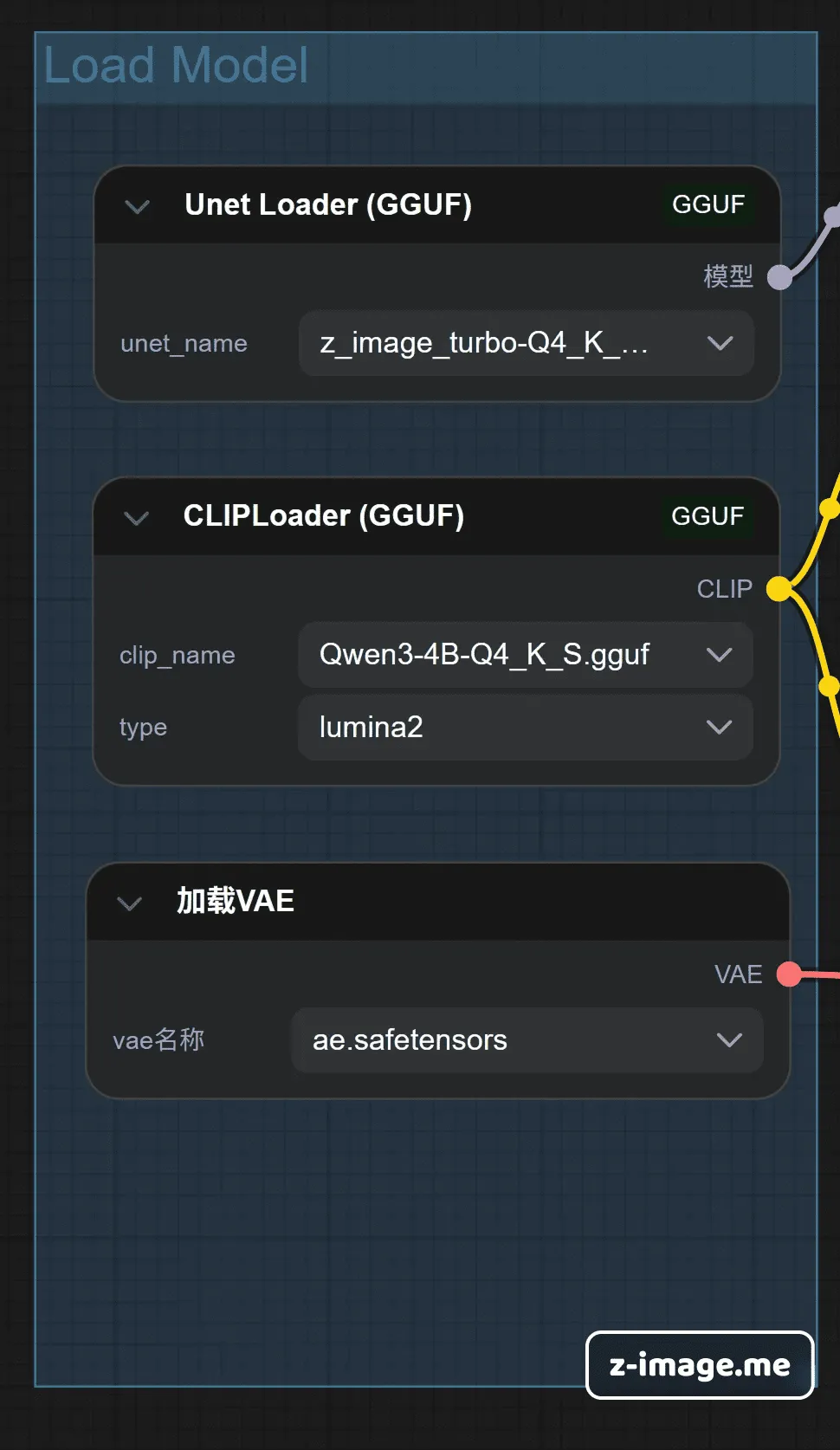
ComfyUI Workflow Connection Diagram
Unlike traditional setups with just a "Checkpoint Loader," we need to load these three components separately, like building with blocks.

  1. Load UNet: Use the Unet Loader (GGUF) node and select your downloaded main model.
  2. Load CLIP: Use the ClipLoader (GGUF) node and select your downloaded Qwen3 model. Note: Don't use the standard CLIP Loader, or it will error!
  3. Load VAE: Use the standard Load VAE node.
  4. Finally: Connect them to the corresponding inputs of the KSampler (sampler).

ComfyUI Workflow Connection Diagram

5. Practical Tips: How to Generate Great Images Without Running Out of VRAM

Configured everything? Here are some exclusive tips to help you avoid pitfalls:

🔧 Core Parameter Settings (Copy the Homework)

Z-Image Turbo is hasty—it doesn't need long generation times.

  • Steps: Set to 8 - 10. Never set it to 20 or 30; too many steps will cause artifacts.
  • CFG (Classifier-Free Guidance): Lock at 1.0. Turbo models don't need high CFG; higher values will oversaturate and gray out the image.
  • Sampler: Recommend euler. Simple, fast, smooth.

🌐 Bilingual Prompts - How to Play?

One of Z-Image's killer features is native support for both Chinese and English, even understanding idioms and classical poetry.

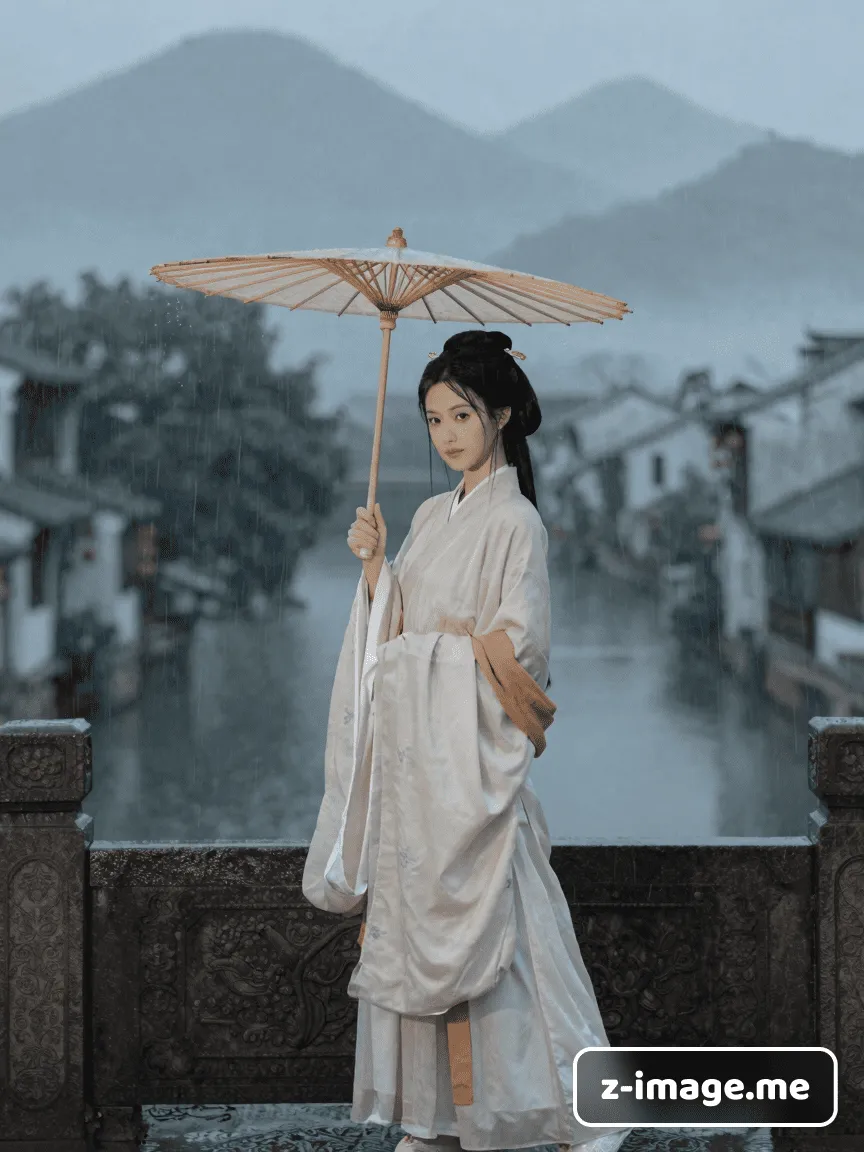
  • Try inputting: "A girl in traditional Hanfu standing on a bridge in misty Jiangnan, background is ink-wash landscape, cinematic lighting"

Z-Image Generation Test: Hanfu Girl

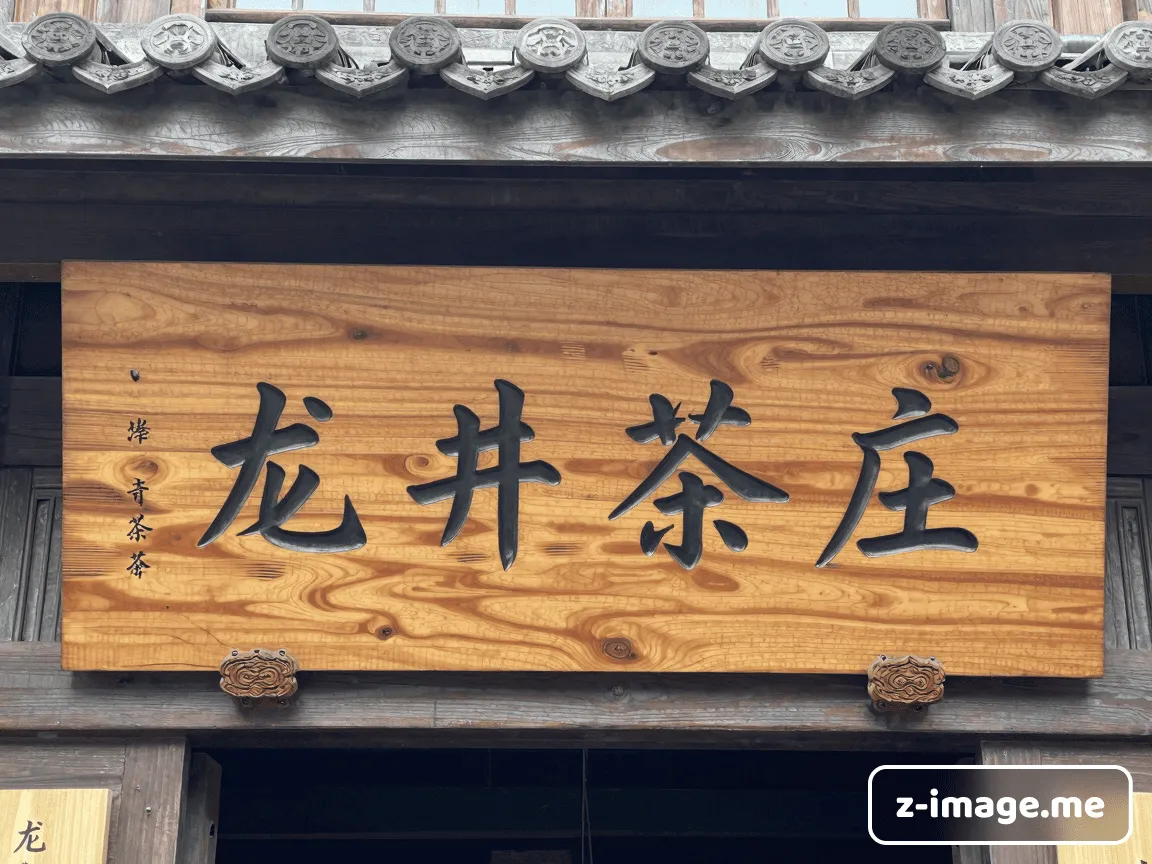
  • Want to generate text? Wrap it in quotes: "A wooden sign that reads "Dragon Well Tea House"". It can actually write Chinese characters correctly!
    Z-Image Generation Test: Chinese Characters

🆘 Help! Out of Memory (OOM) Error?

If the progress bar stops halfway with an "Out Of Memory" error:

  1. Lower Resolution: Reduce from 1024x1024 to 896x896 or 768x1024. This immediately saves VRAM.
  2. Startup Parameter Optimization: Add --lowvram parameter to ComfyUI's launch script. It sacrifices some speed to force memory clearing after each step, but ensures it runs.
  3. Close Browser: Chrome is a RAM hog. When generating images, try closing those dozens of tabs.