

Qwen-Image-i2L:单图打造专属AI画师,个性化图像创作全攻略
Qwen-Image-i2L:单图打造专属AI画师,个性化图像创作全攻略
你是否曾希望AI能学会你最喜欢的插画风格,但苦于没有几十张素材和昂贵的算力?现在,一张图就够了。阿里通义实验室开源的 Qwen-Image-i2L 正是这样一款革命性工具,它让你像“拼乐高”一样,用单张图片就能定制出属于自己的AI画师。
本文将带你从零开始,快速掌握这个“风格魔法棒”的使用方法。
一、初识i2L:它是什么,为何强大?
Qwen-Image-i2L 是一个个性化风格迁移工具。它的核心是 “Image to LoRA”,意为将一张输入图像的关键风格特征,分解并“压缩”成一个轻量级的LoRA(Low-Rank Adaptation)适配器模块。
核心原理:化繁为简的“风格拆解术”
传统AI学习新风格需要海量数据和长时间训练。i2L的创新在于其图像分解机制:它像拆解盲盒一样,智能地将一张图片分解为“颜色基调”、“纹理笔触”、“构图元素”等可学习的“零件”。这些零件被封装进一个仅有几GB大小的LoRA文件里,之后就可以像插件一样,加载到Stable Diffusion等主流文生图模型中,生成无数张同风格的新作品。

简单来说,其工作流程可以概括为以下三步:
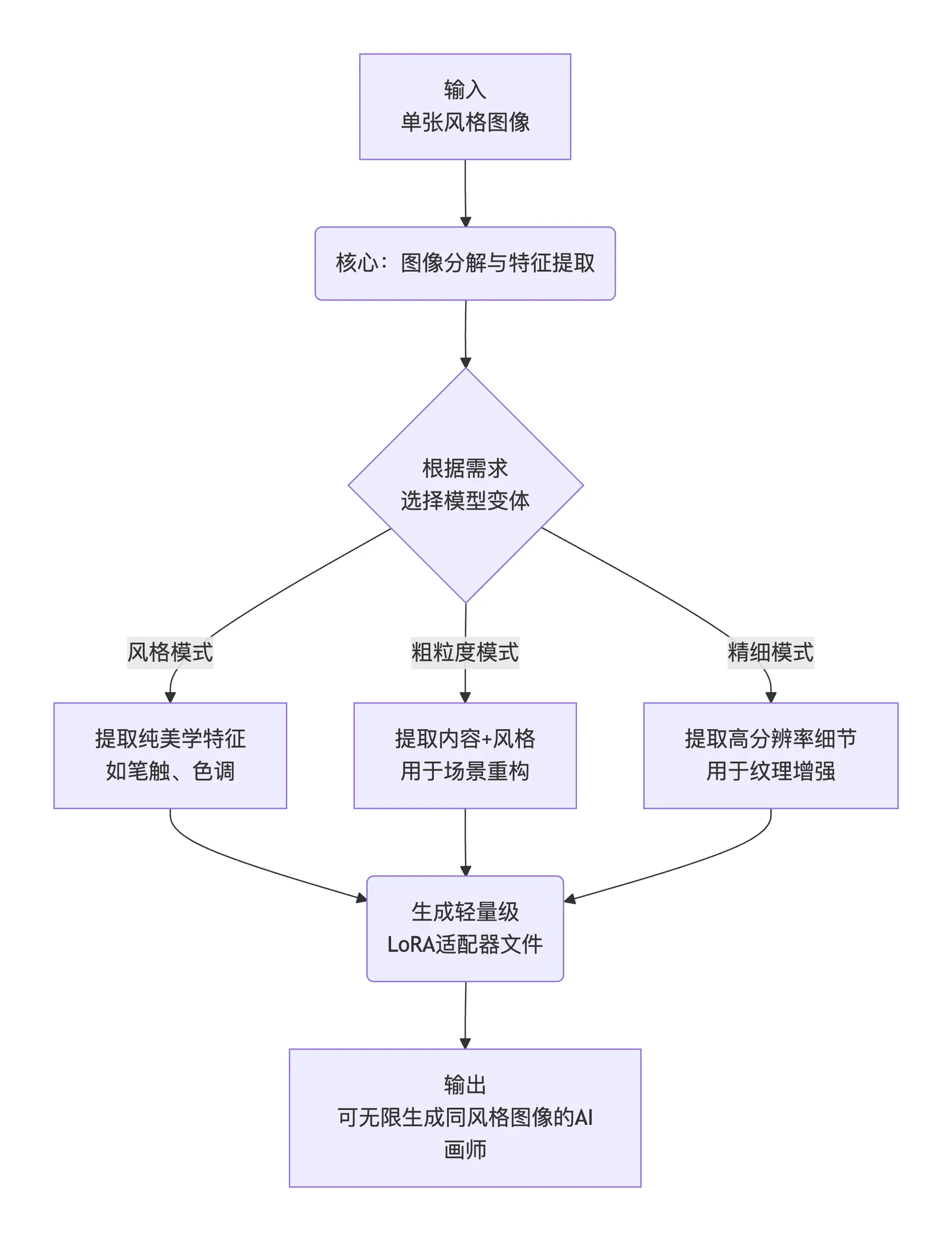
flowchart TD
    A[输入<br>单张风格图像] --> B(核心:图像分解与特征提取)

    B --> C{根据需求<br>选择模型变体}

    C -- 风格模式 --> D1[提取纯美学特征<br>如笔触、色调]
    C -- 粗粒度模式 --> D2[提取内容+风格<br>用于场景重构]
    C -- 精细模式 --> D3[提取高分辨率细节<br>用于纹理增强]

    D1 & D2 & D3 --> E(生成轻量级<br>LoRA适配器文件)

    E --> F[输出<br>可无限生成同风格图像的AI画师]
深入原理剖析
模型的核心是图像到LoRA的转换管道:输入图像先通过编码器(如SigLIP2提取语义、DINOv3捕捉视觉模式、Qwen-VL处理高分辨率细节)转化为嵌入向量,然后这些向量直接映射到LoRA矩阵(低秩矩阵A和B)。LoRA本质上是基础模型(如Qwen-Image)的“补丁”,只更新少量参数(通常<1%),实现高效注入。
四个变体设计针对不同需求:
- Style (2.4B): 专注风格提取,细节保存弱,但风格捕捉强。编码器:SigLIP2 + DINOv3。
- Coarse (7.9B): 扩展Style,初步捕捉内容,但细节不完美。编码器添加Qwen-VL (224x224分辨率)。
- Fine (7.6B): Coarse的增量升级,提升到1024x1024分辨率,专注细节。必须与Coarse结合使用。
- Bias (30M): 静态LoRA,修正生成图像与Qwen-Image底模的风格偏差(如颜色偏好)。
下图是一个通用LoRA架构示意图,Qwen-Image-i2L在此基础上添加图像输入层:
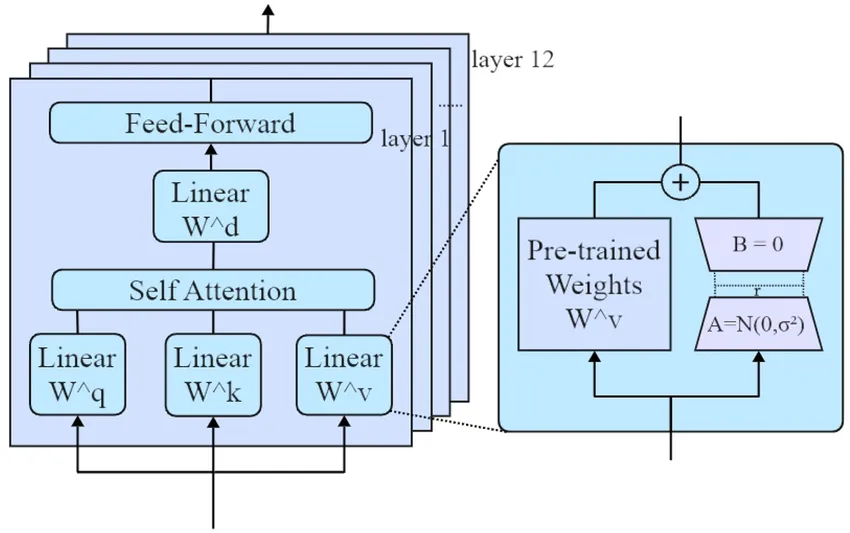
局限性包括泛化不足(单图难以捕捉3D逻辑)和细节丢失(复杂纹理可能需多图输入)。研究显示,使用Bias可提升兼容性达20-30%(基于示例比较)。
为何要关注它?四大核心优势
- 门槛极低:告别需要20张以上图片和GPU集群的传统流程,一张图加普通电脑即可。
- 效率极高:从准备到生成可用的风格模型,耗时从数小时缩短至几分钟。
- 质量出色:生成的LoRA能精准捕捉原图精髓,无缝融入主流AI绘画流程。
- 用途灵活:无论是将《星月夜》的风格用在现代建筑上,还是把动漫风迁移到真人照片,都能快速尝试。
二、实战指南:从零开始使用i2L
1. 环境准备
与使用基础的Qwen-Image模型类似,你需要一个Python环境。由于i2L基于强大的Qwen-Image(200亿参数MMDiT架构) 开发,因此对硬件有一定要求。
以下是推荐的配置参考:
| 硬件 | 最低要求 | 推荐配置 |
|---|---|---|
| GPU | NVIDIA GTX 1080 Ti (8GB) | NVIDIA RTX 4090 D或更高 |
| 内存 | 16GB | 32GB 或以上 |
| 存储 | 50GB 可用空间 | 100GB SSD |
2. 选择你的“魔法棒”:四款模型变体
i2L并非一刀切,它提供了四款针对不同场景优化的模型,你需要根据创作目标进行选择:
| 模型变体 | 参数规模 | 核心用途 | 适合场景 |
|---|---|---|---|
| 风格模式 | 2.4B | 专攻纯美学风格迁移 | 学习水彩笔触、油画质感、特定滤镜色调 |
| 粗粒度模式 | 7.9B | 捕捉内容与风格,进行场景重构 | 把街景变赛博朋克,把风景变童话世界 |
| 精细模式 | 7.6B | 生成1024x1024高分辨率细节 | 需突出动物毛发、建筑砖块、织物纹理等细节时 |
| 偏见模式 | 30M | 确保输出与Qwen-Image原生风格一致 | 企业统一宣传图视觉风格,防止品牌“跑偏” |
新手建议:从风格模式或粗粒度模式开始尝试,它们能处理大多数常见需求。
3. 核心步骤:单图训练你的LoRA
以下是一个简化的操作流程,具体代码请以项目官方GitHub仓库为准。
第一步:获取模型
所有模型均已开源,你可以在 Hugging Face 或 ModelScope 平台搜索“Qwen-Image-i2L”并免费下载。
第二步:准备你的风格图像
- 选择一张能清晰代表你所需风格的图片。
- 确保图片质量较高,重点元素清晰。
- (可选)如果想学习特定主体(如某只猫),尽量使用主体突出的图片。
第三步:运行训练脚本
训练过程通常只需一条命令。你需要指定输入图片路径、输出LoRA的保存位置,以及选择上表中对应的模型类型。
# 示例命令(仅供参考,请以官方文档为准)
python train_i2l.py \
  --input_image “你的图片.webp” \
  --model_type “style” \  # 此处选择“风格模式”
  --output_lora “./my_style_lora.safetensors”
第四步:使用生成的LoRA进行创作
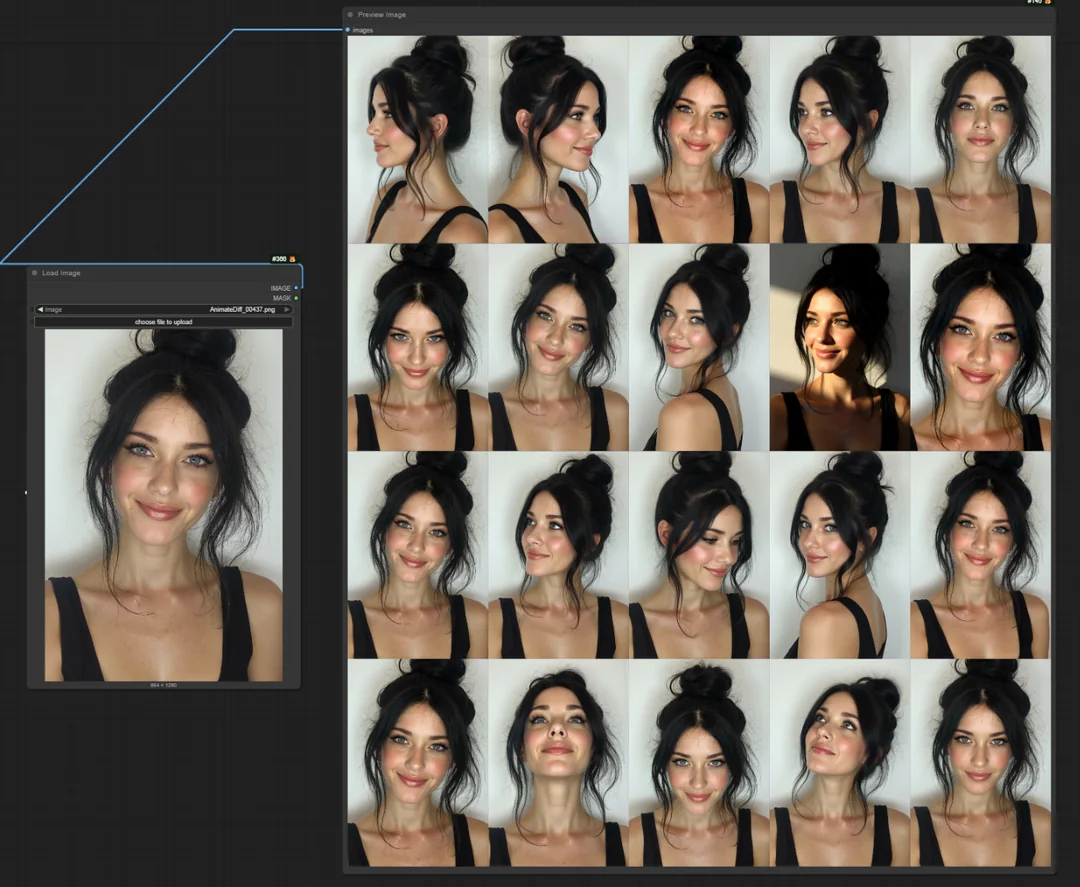
训练完成后,你会得到一个 .safetensors 文件。在Stable Diffusion WebUI(如Automatic1111)或ComfyUI中:
- 将LoRA文件放入对应的模型文件夹。
- 在生成图片时,在提示词中通过特定语法(如
<lora:my_style_lora:1>)调用该LoRA。 - 输入你的内容描述,即可生成融合了自定义风格的新图像。
4. 调参与提示词技巧
- 提示词是关键:Qwen系列模型以强大的文本理解和渲染能力著称。在生成最终图像时,结合清晰的内容提示词和LoRA,效果更佳。例如:“
<lora:van Gogh_starry_night:0.8>, 一座现代摩天大楼,夜空,漩涡状的星光,油画笔触。” - 控制LoRA强度:通常可以在调用语法中调整权重(如将
:1改为:0.7),权重越低,风格影响越弱,与内容的融合更自然。 - 使用负向提示词:排除不想要的元素,如“blurry, deformed, ugly”来提升画面质量。
5. 官方推荐推理代码
安装 DiffSynth-Studio:
git clone https://github.com/modelscope/DiffSynth-Studio.git
cd DiffSynth-Studio
pip install -e .
Qwen-Image-i2L-Style
from diffsynth.pipelines.qwen_image import (
    QwenImagePipeline, ModelConfig,
    QwenImageUnit_Image2LoRAEncode, QwenImageUnit_Image2LoRADecode
)
from modelscope import snapshot_download
from safetensors.torch import save_file
import torch
from PIL import Image

vram_config_disk_offload = {
    "offload_dtype": "disk",
    "offload_device": "disk",
    "onload_dtype": "disk",
    "onload_device": "disk",
    "preparing_dtype": torch.bfloat16,
    "preparing_device": "cuda",
    "computation_dtype": torch.bfloat16,
    "computation_device": "cuda",
}

# Load models
pipe = QwenImagePipeline.from_pretrained(
    torch_dtype=torch.bfloat16,
    device="cuda",
    model_configs=[
        ModelConfig(model_id="DiffSynth-Studio/General-Image-Encoders", origin_file_pattern="SigLIP2-G384/model.safetensors", **vram_config_disk_offload),
        ModelConfig(model_id="DiffSynth-Studio/General-Image-Encoders", origin_file_pattern="DINOv3-7B/model.safetensors", **vram_config_disk_offload),
        ModelConfig(model_id="DiffSynth-Studio/Qwen-Image-i2L", origin_file_pattern="Qwen-Image-i2L-Style.safetensors", **vram_config_disk_offload),
    ],
    processor_config=ModelConfig(model_id="Qwen/Qwen-Image-Edit", origin_file_pattern="processor/"),
    vram_limit=torch.cuda.mem_get_info("cuda")[1] / (1024 ** 3) - 0.5,
)

# Load images
snapshot_download(
    model_id="DiffSynth-Studio/Qwen-Image-i2L",
    allow_file_pattern="assets/style/1/*",
    local_dir="data/examples"
)
images = [
    Image.open("data/examples/assets/style/1/0.webp"),
    Image.open("data/examples/assets/style/1/1.webp"),
    Image.open("data/examples/assets/style/1/2.webp"),
    Image.open("data/examples/assets/style/1/3.webp"),
    Image.open("data/examples/assets/style/1/4.webp"),
]

# Model inference
with torch.no_grad():
    embs = QwenImageUnit_Image2LoRAEncode().process(pipe, image2lora_images=images)
    lora = QwenImageUnit_Image2LoRADecode().process(pipe, **embs)["lora"]
save_file(lora, "model_style.safetensors")
Qwen-Image-i2L-Coarse、Qwen-Image-i2L-Fine、Qwen-Image-i2L-Bias
from diffsynth.pipelines.qwen_image import (
    QwenImagePipeline, ModelConfig,
    QwenImageUnit_Image2LoRAEncode, QwenImageUnit_Image2LoRADecode
)
from diffsynth.utils.lora import merge_lora
from diffsynth import load_state_dict
from modelscope import snapshot_download
from safetensors.torch import save_file
import torch
from PIL import Image

vram_config_disk_offload = {
    "offload_dtype": "disk",
    "offload_device": "disk",
    "onload_dtype": "disk",
    "onload_device": "disk",
    "preparing_dtype": torch.bfloat16,
    "preparing_device": "cuda",
    "computation_dtype": torch.bfloat16,
    "computation_device": "cuda",
}

# Load models
pipe = QwenImagePipeline.from_pretrained(
    torch_dtype=torch.bfloat16,
    device="cuda",
    model_configs=[
        ModelConfig(model_id="Qwen/Qwen-Image", origin_file_pattern="text_encoder/model*.safetensors", **vram_config_disk_offload),
        ModelConfig(model_id="DiffSynth-Studio/General-Image-Encoders", origin_file_pattern="SigLIP2-G384/model.safetensors", **vram_config_disk_offload),
        ModelConfig(model_id="DiffSynth-Studio/General-Image-Encoders", origin_file_pattern="DINOv3-7B/model.safetensors", **vram_config_disk_offload),
        ModelConfig(model_id="DiffSynth-Studio/Qwen-Image-i2L", origin_file_pattern="Qwen-Image-i2L-Coarse.safetensors", **vram_config_disk_offload),
        ModelConfig(model_id="DiffSynth-Studio/Qwen-Image-i2L", origin_file_pattern="Qwen-Image-i2L-Fine.safetensors", **vram_config_disk_offload),
    ],
    processor_config=ModelConfig(model_id="Qwen/Qwen-Image-Edit", origin_file_pattern="processor/"),
    vram_limit=torch.cuda.mem_get_info("cuda")[1] / (1024 ** 3) - 0.5,
)

# Load images
snapshot_download(
    model_id="DiffSynth-Studio/Qwen-Image-i2L",
    allow_file_pattern="assets/lora/3/*",
    local_dir="data/examples"
)
images = [
    Image.open("data/examples/assets/lora/3/0.webp"),
    Image.open("data/examples/assets/lora/3/1.webp"),
    Image.open("data/examples/assets/lora/3/2.webp"),
    Image.open("data/examples/assets/lora/3/3.webp"),
    Image.open("data/examples/assets/lora/3/4.webp"),
    Image.open("data/examples/assets/lora/3/5.webp"),
]

# Model inference
with torch.no_grad():
    embs = QwenImageUnit_Image2LoRAEncode().process(pipe, image2lora_images=images)
    lora = QwenImageUnit_Image2LoRADecode().process(pipe, **embs)["lora"]
    lora_bias = ModelConfig(model_id="DiffSynth-Studio/Qwen-Image-i2L", origin_file_pattern="Qwen-Image-i2L-Bias.safetensors")
    lora_bias.download_if_necessary()
    lora_bias = load_state_dict(lora_bias.path, torch_dtype=torch.bfloat16, device="cuda")
    lora = merge_lora([lora, lora_bias])
save_file(lora, "model_coarse_fine_bias.safetensors")
使用生成的 LoRA 生成图像
from diffsynth.pipelines.qwen_image import QwenImagePipeline, ModelConfig
import torch

vram_config = {
    "offload_dtype": "disk",
    "offload_device": "disk",
    "onload_dtype": torch.bfloat16,
    "onload_device": "cpu",
    "preparing_dtype": torch.bfloat16,
    "preparing_device": "cuda",
    "computation_dtype": torch.bfloat16,
    "computation_device": "cuda",
}
pipe = QwenImagePipeline.from_pretrained(
    torch_dtype=torch.bfloat16,
    device="cuda",
    model_configs=[
        ModelConfig(model_id="Qwen/Qwen-Image", origin_file_pattern="transformer/diffusion_pytorch_model*.safetensors", **vram_config),
        ModelConfig(model_id="Qwen/Qwen-Image", origin_file_pattern="text_encoder/model*.safetensors", **vram_config),
        ModelConfig(model_id="Qwen/Qwen-Image", origin_file_pattern="vae/diffusion_pytorch_model.safetensors", **vram_config),
    ],
    tokenizer_config=ModelConfig(model_id="Qwen/Qwen-Image", origin_file_pattern="tokenizer/"),
    vram_limit=torch.cuda.mem_get_info("cuda")[1] / (1024 ** 3) - 0.5,
)
pipe.load_lora(pipe.dit, "model_style.safetensors")
image = pipe("a cat", seed=0, height=1024, width=1024, num_inference_steps=50)
image.save("image.webp")
6. 官方示例
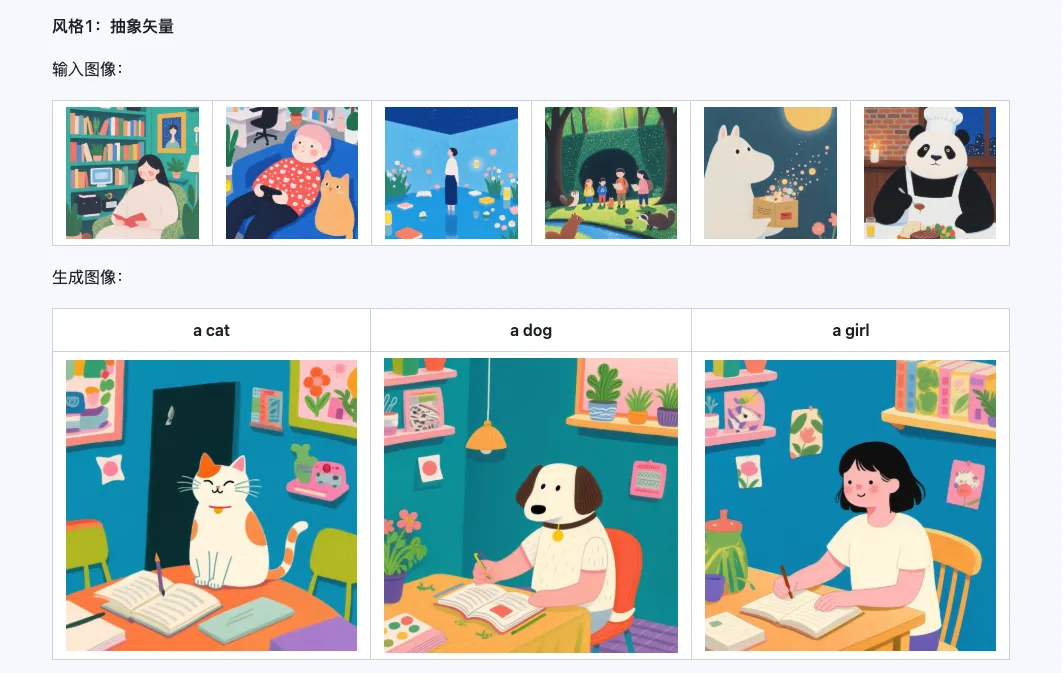
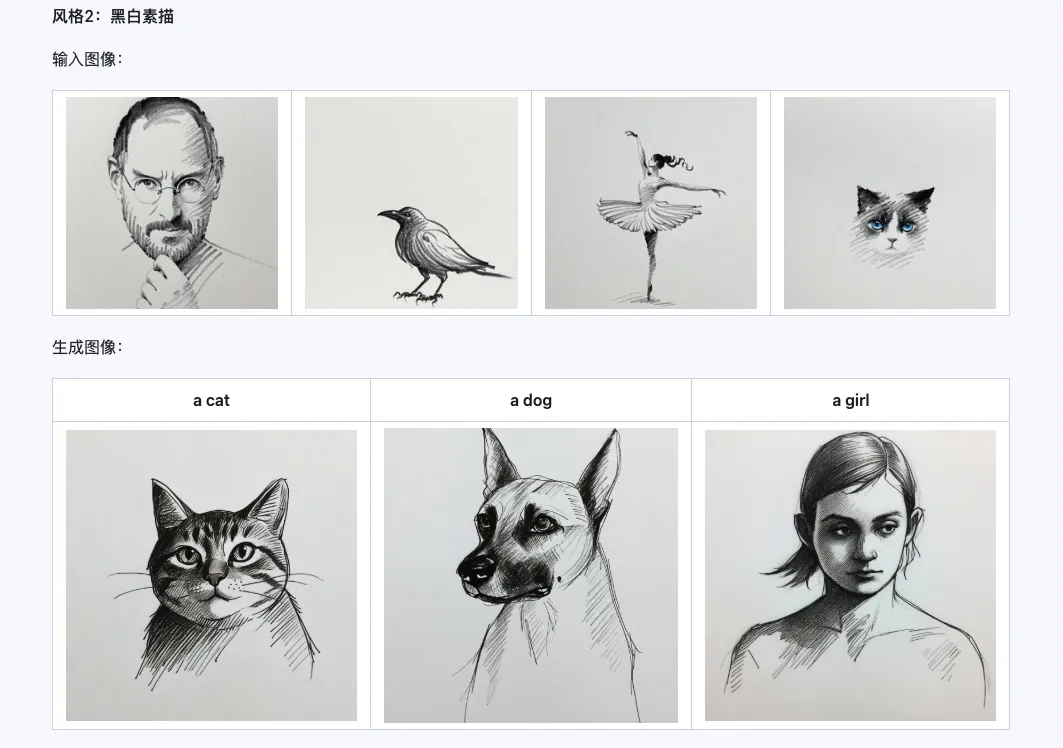
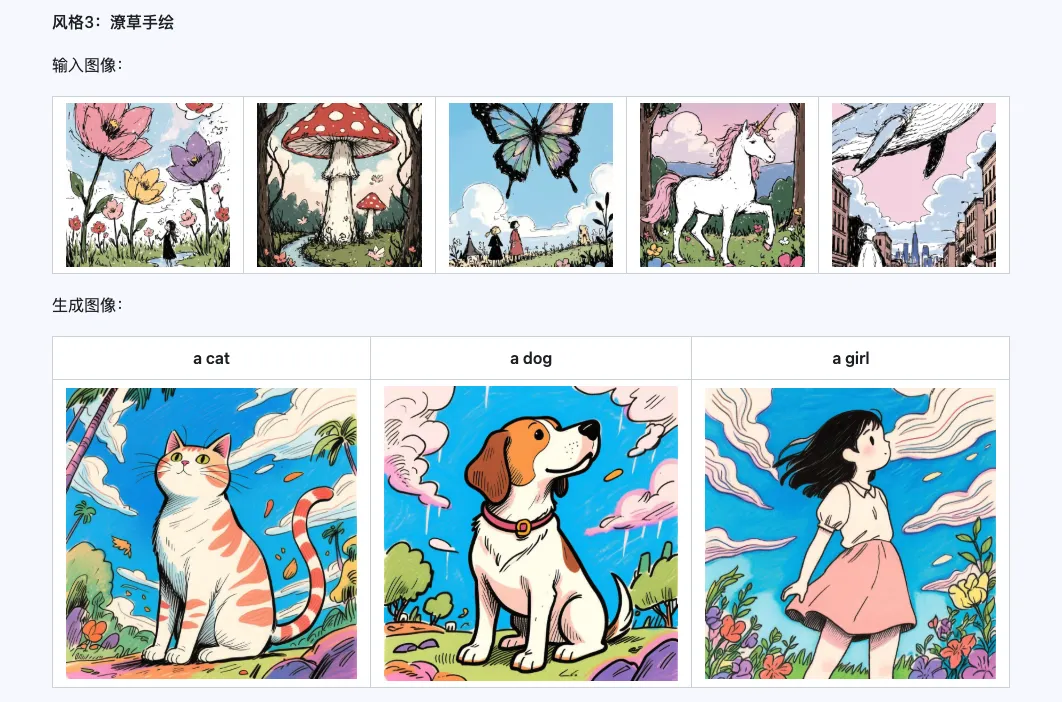
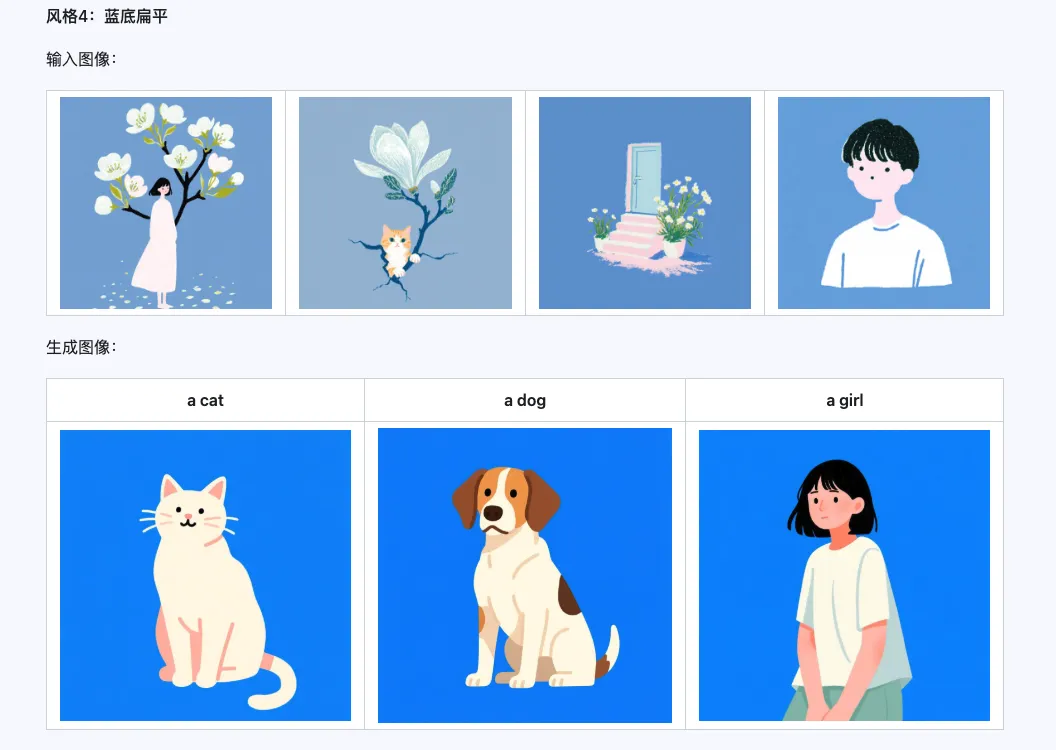
Style
Qwen-Image-i2L-Style 模型可用于快速生成风格 LoRA,只需输入几张风格统一的图像。以下是我们生成的结果,随机种子都是 0。
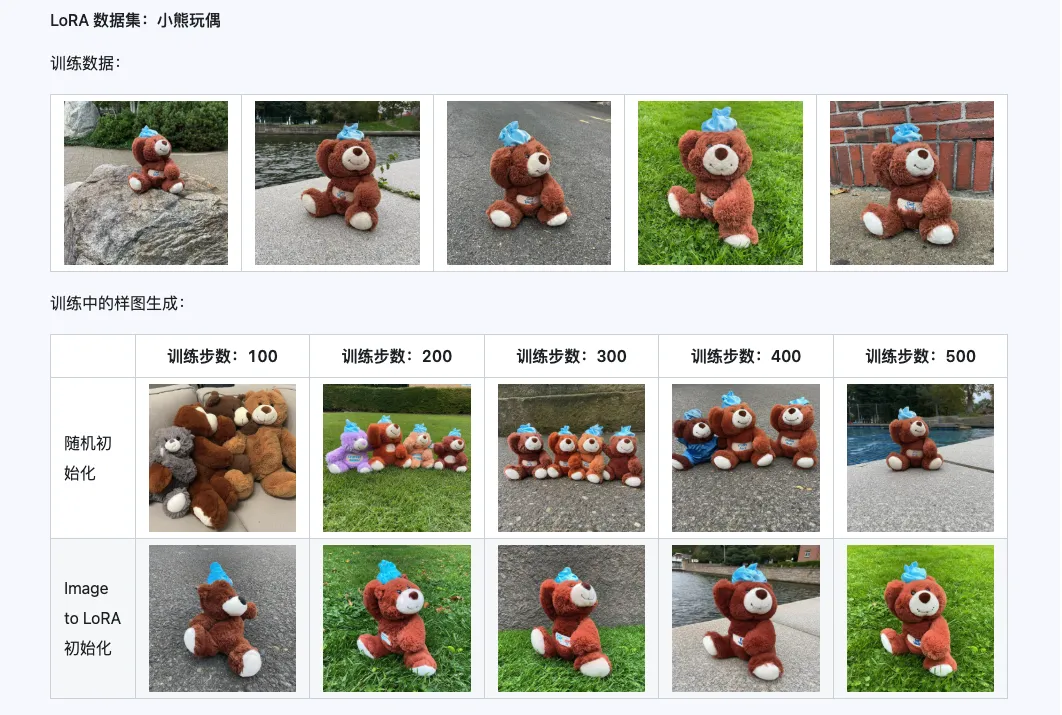
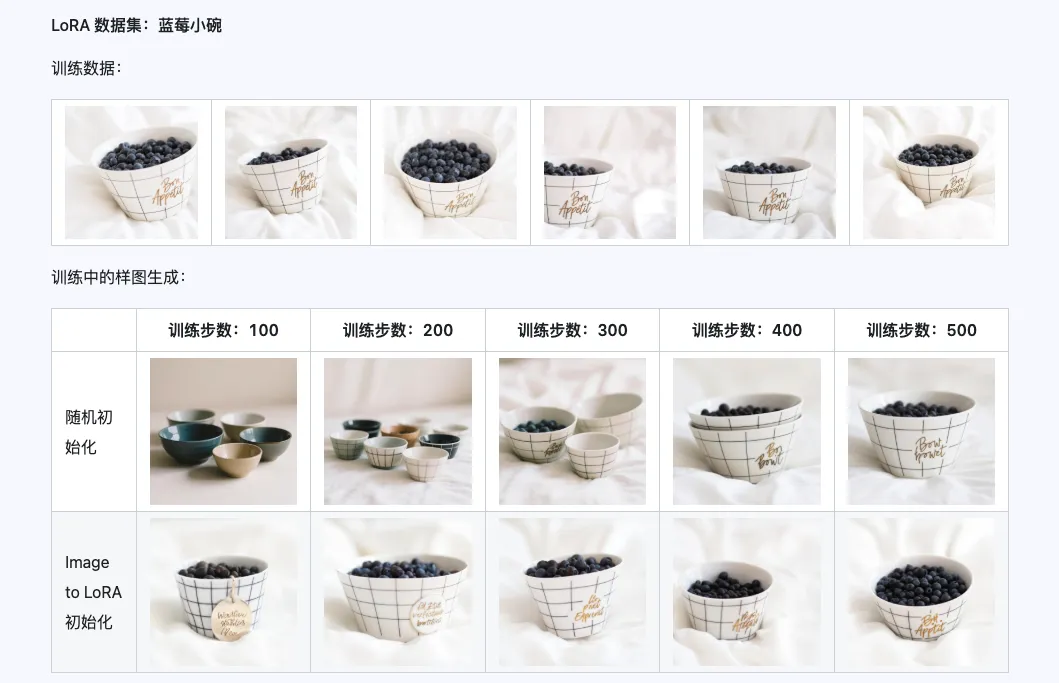
Coarse + Fine + Bias
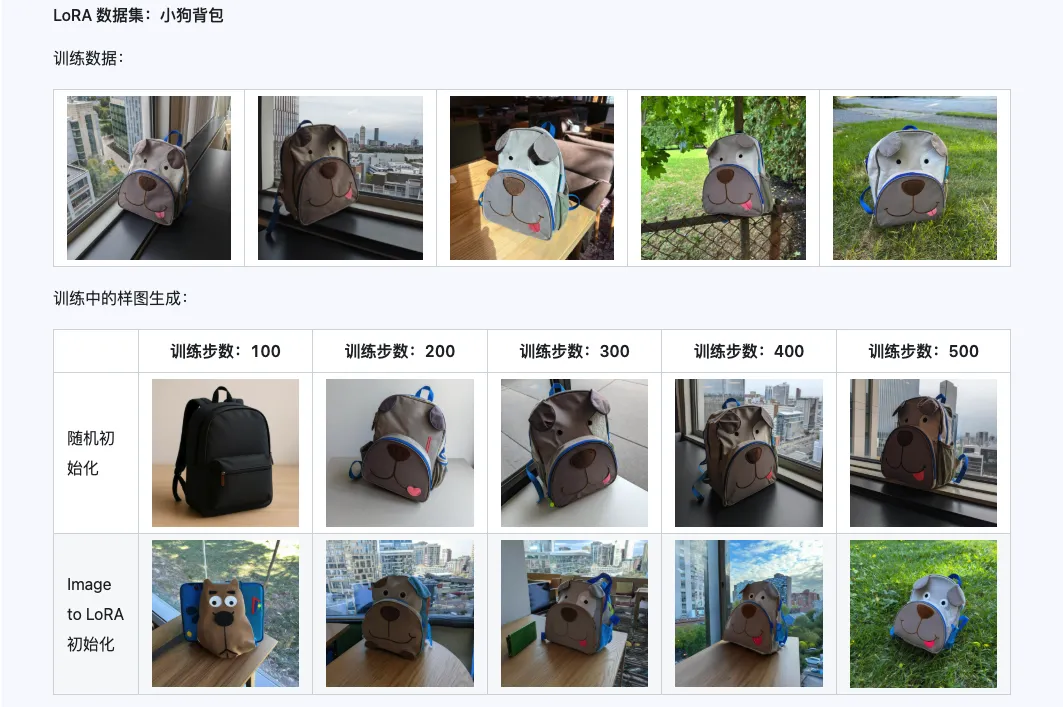
Qwen-Image-i2L-Coarse、Qwen-Image-i2L-Fine、Qwen-Image-i2L-Bias 三者组合后可以生成保留图像内容和细节信息的 LoRA 权重,这组权重作为 LoRA 训练的初始化权重能够加速收敛速度。
三、应用场景:你的创意加速器
- 个人艺术创作:快速尝试多种大师画风,或为自己的作品集建立统一风格。
- 电商与营销:为不同产品线快速生成统一风格、不同内容的宣传图,大幅降低拍摄和设计成本。
- 游戏与影视概念:快速将一张原画风格迁移到多个场景、角色设计中,高效产出概念图。
- 品牌视觉管理:使用“偏见模式”,确保所有AI生成的营销素材严格符合品牌VI规范。
四、注意事项与未来
- 当前局限:从单张2D图片推导3D逻辑存在挑战。例如,训练一张“猫在沙发上”的图片,生成的图可能在其它角度出现物体悬空或变形。对于复杂三维风格,准备多角度图片仍是更好选择。
- 未来发展:i2L标志着AI图像生成进入 “即时定制”时代。可以预见,未来会有更多“一键生成漫画分镜”、“一键设计角色”等应用涌现,让个性化AI创作更加普及。
现在,就找一张最能代表你心中美学的图片,开始打造你的专属AI画师吧!
本文操作指南基于 Qwen-Image-i2L 开源技术文档及社区实践。模型具体使用方法可能更新,建议同时查阅 z-image.me、Hugging Face 或 ModelScope 上的项目主页获取最新信息。